Written by Alex Ren
Updated on 15 min read
"Your screen is being observed" on Mac: what it actually means
Quick summary On a Mac, "your screen is being observed" means one specific thing: an app on your machine is currently using the screen recording permission you granted it. It is a status message, not an alarm, and in the overwhelming majority of cases the app behind it is one you installed on purpose and forgot about.
In this article
- What the message actually means
- The distinction every other guide skips: holding the permission is not using it
- How to find the app that is actually observing your screen
- Why modern macOS keeps asking again (and why that is not a bug)
- Does KeepingYouAwake cause this? No, and here is how to be sure
- Why does my MacBook say my screen is being observed?
- When it is genuinely worth taking seriously
- "Observed" does not mean "sent somewhere"
- Frequently asked questions
That answer is the easy part. The hard part, and the reason you probably landed here after reading three other guides, is that the usual advice does not survive contact with reality. You turn off Screen Sharing, you revoke a few permissions, you restart, and the message either stays or comes back two days later. This article explains the mechanism underneath, which is what actually lets you find the culprit in about two minutes.
What the message actually means#
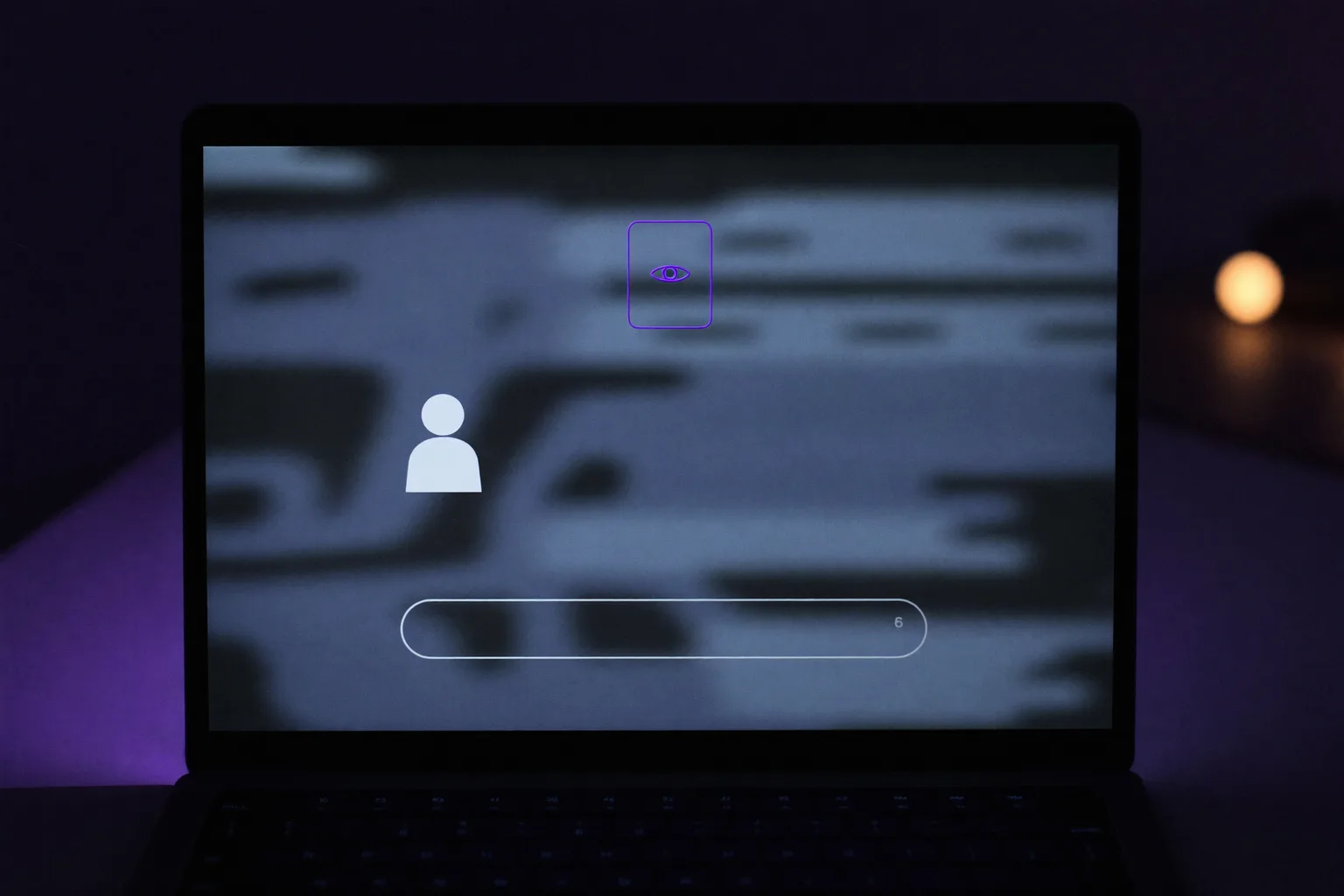
macOS shows this notice on the lock screen when something is capturing the contents of your display. Apple's own documentation is unambiguous about the intent: when software is sharing or recording your screen, the lock screen tells you so. It appears on the lock screen specifically because that is the one moment you cannot see your menu bar, where the live privacy indicators normally live. You walk away, the Mac locks, and macOS makes sure the last thing you see is a note that something is still watching.
The permission behind it lives in System Settings > Privacy & Security > Screen & System Audio Recording. Any app that wants the pixels on your display has to appear in that list and be toggled on. There is no way around it, no silent path, and no legacy exception: since macOS Catalina this has been enforced at the system level for every app, signed or not.
The distinction every other guide skips: holding the permission is not using it#
This is where most troubleshooting goes wrong. An app can sit in your Screen & System Audio Recording list with its toggle switched on for eighteen months and never once trigger the lock screen message. The permission is a standing authorisation. The message tracks something narrower: a process actually opening a capture stream right now.
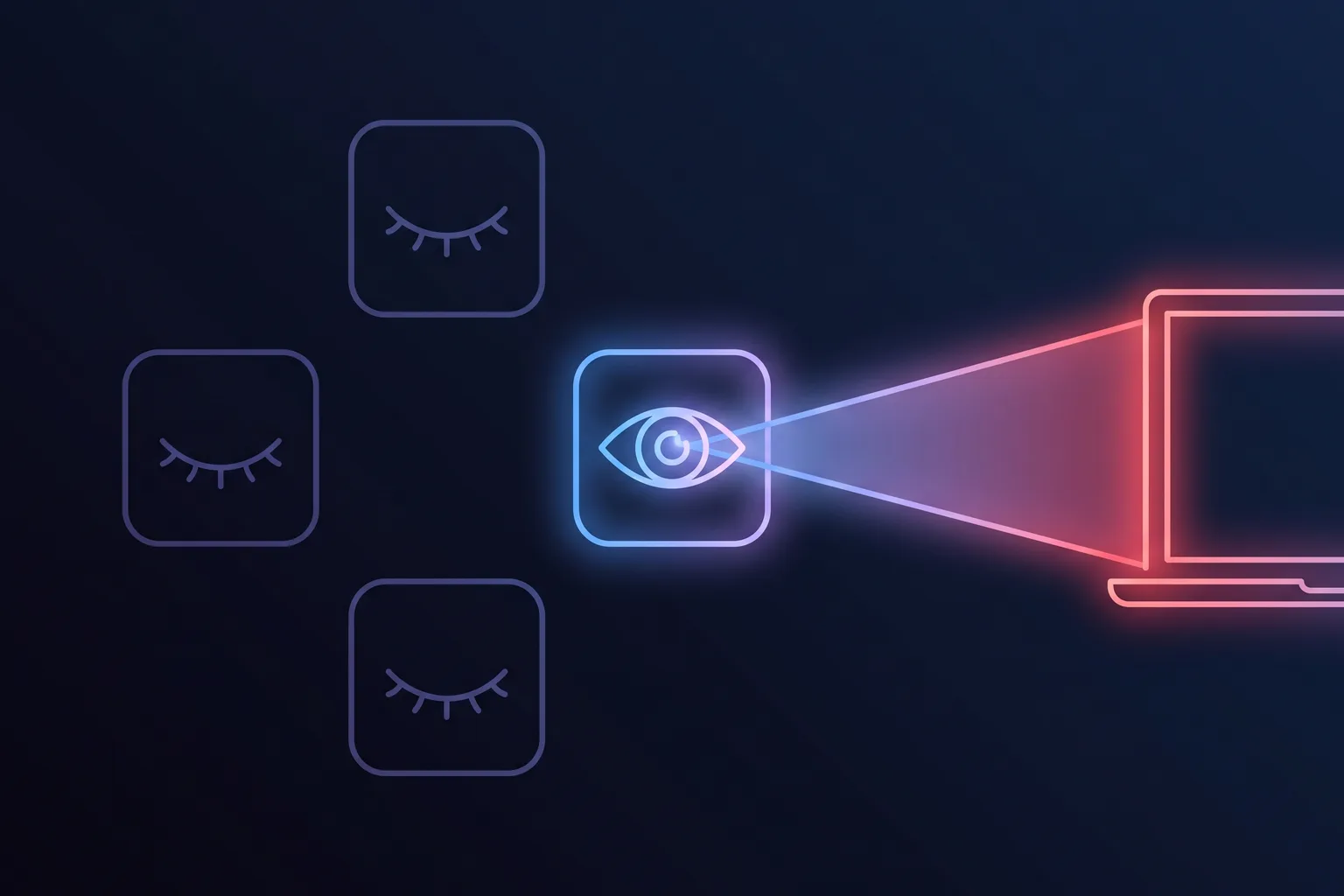
The practical consequence matters. When a guide tells you to revoke every app in that list, you will usually see the message disappear, and you will conclude the last app you toggled was the guilty one. It probably was not. You revoked eleven permissions at once, one of them happened to be the active capturer, and you now have a broken screenshot tool, a video call app that cannot share a window, and no idea which change did what.
Work the other way round. Identify what is capturing right now, then decide whether it should be. That takes a couple of minutes and leaves the rest of your Mac intact.
How to find the app that is actually observing your screen#
In order, cheapest check first. Stop as soon as one of these names the app, because the later steps are only useful when the earlier ones come up empty.
- Open Control Center and look at the top of the panel. When something is capturing your screen or your system audio, macOS lists the responsible app there. On recent macOS versions a coloured indicator sits next to the Control Center icon in the menu bar while capture is live. This is the single fastest answer and most guides never mention it.
- Check the sharing services. System Settings > General > Sharing. Screen Sharing, Remote Management and Remote Login are the three that matter. Remote Management in particular is the one that gets switched on once for a support session years ago and never switched off.
- Check AirPlay and mirroring. System Settings > General > AirDrop & Handoff for AirPlay Receiver, plus the Screen Mirroring tile in Control Center. Mirroring to a TV or a second Mac is observation by any reasonable definition, and macOS reports it as such.
- Read the Screen & System Audio Recording list as a shortlist, not a hit list. You are not revoking everything. You are looking for the one or two entries you cannot account for, and for anything you installed in the week the message first appeared.
- Open Activity Monitor and sort by CPU. A process quietly capturing your display continuously is rarely at zero. Cross-reference anything unfamiliar against the permission list from the previous step.
- Check what starts on its own. System Settings > General > Login Items & Extensions covers both login items and the background agents that no longer show a window at all. This is where a tool you uninstalled months ago can still have a leftover helper running.
| What you are seeing | Usual cause | Where to look |
|---|---|---|
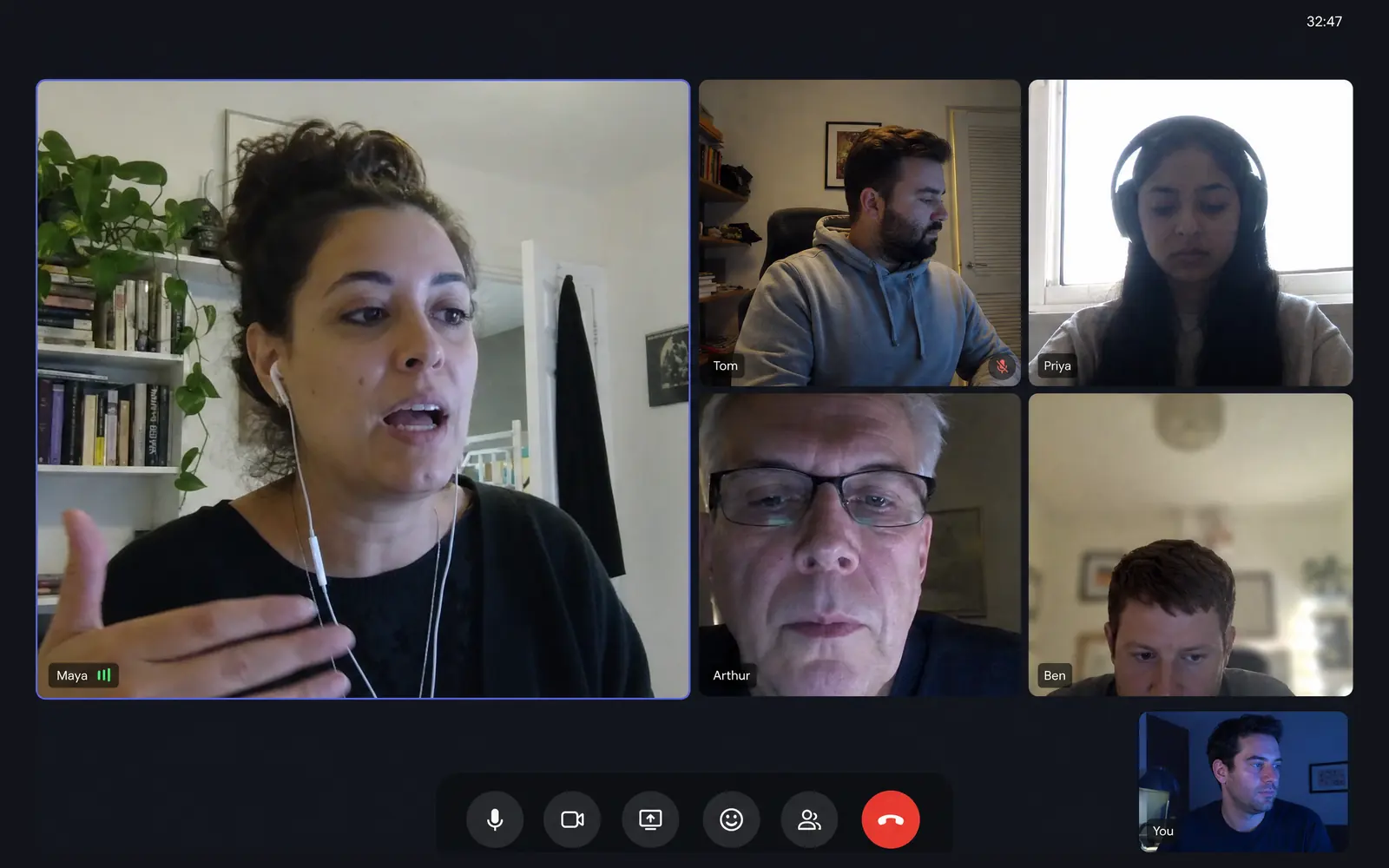
| Message appears during or after a video call | Zoom, Teams, Meet or Slack still holding the capture stream after the call ended | Quit the app fully, then recheck Control Center |
| Message appears constantly, on every lock | A menu bar utility with a persistent capture stream (screenshot tool, colour picker, window manager, break app) | Privacy & Security > Screen & System Audio Recording |
| Message on a work Mac you did not configure | MDM or remote support enrolled by your IT department | System Settings > General > Device Management, and General > Sharing |
| Message with a TV or second display connected | AirPlay, Screen Mirroring or Sidecar | Control Center > Screen Mirroring |
| Message right after a support session | Remote Management or a remote access tool left enabled | System Settings > General > Sharing |
| Message that survives every fix and a restart | A leftover background agent from an uninstalled app | General > Login Items & Extensions |

Why modern macOS keeps asking again (and why that is not a bug)#
If your Mac has started nagging you about screen recording permissions on a schedule, that is deliberate. Starting with macOS Sequoia, Apple made screen recording authorisations expire: apps that capture your display have to re-ask periodically rather than holding the permission forever. The first betas prompted weekly, which was widely criticised, and Apple settled on roughly monthly before release.
It is worth understanding because it changes what a recurring prompt means. A monthly request from an app you use every day is the system working. A prompt from an app you do not recognise, or one that appears far more often than monthly, is worth the two minutes of investigation above. Security researchers pushed back hard on the frequency at the time, on the grounds that prompt fatigue trains people to click Allow without reading, and that criticism was fair. It is also exactly why you should read the app name on the prompt rather than dismissing it reflexively.
Does KeepingYouAwake cause this? No, and here is how to be sure#
This comes up constantly, because the moment people start auditing their menu bar they get suspicious of every small utility up there. KeepingYouAwake, Amphetamine and the built-in `caffeinate` command are the usual suspects. They are innocent, and the reason is worth knowing.
An app to keep your Mac awake works through power assertions: it asks macOS not to let the display sleep. That is a power management request. It never touches the contents of your screen, it does not need the Screen & System Audio Recording permission, and it therefore cannot produce the "your screen is being observed" message. If you want to verify rather than take my word for it, open Privacy & Security > Screen & System Audio Recording and look: a keep-awake app is not in the list at all, because it never had reason to ask.
The confusion is understandable. Both categories are invisible menu bar tools that do something to your Mac you cannot see, and both show up in the same panicked search session. But if you are hunting the source of the message, a keep-awake app is a dead end and you can cross it off immediately. What these apps genuinely do deserve scrutiny for is the opposite problem: an app to keep a MacBook awake will happily hold your display on all afternoon, which is a battery and eye strain question rather than a privacy one.
Why does my MacBook say my screen is being observed?#
Mechanically it is identical: a MacBook is a Mac, and the message comes from the same permission. But laptops add four triggers that a desktop rarely sees, and if you are searching the MacBook phrasing specifically, one of these is probably yours.
- External displays and clamshell mode. Docking, undocking and mirroring to a monitor or a TV all involve the display pipeline, and mirroring in particular is reported as observation.
- Sidecar and Continuity. Using an iPad as a second display is a legitimate, Apple-built form of screen sharing, and it announces itself accordingly.
- A work laptop with device management. This is the big one, and the one other guides tiptoe around. If your MacBook was issued by an employer, check System Settings > General > Device Management. An MDM profile can allow remote screen observation, and the lock screen message may be the only visible sign. That is not a malfunction and it is not something you should try to disable: it is a conversation to have with your IT department, and in many jurisdictions your employer has disclosure obligations about it.
- Travel habits. A MacBook joins more networks and more meetings than a desktop, which simply means more video call apps have asked for capture rights over its lifetime.
When it is genuinely worth taking seriously#
Every article on this topic ends by recommending a malware scan, usually one the publisher happens to sell. Let us be straight about the base rates: the overwhelming majority of these messages trace back to a video call app, a screenshot utility, a mirroring session or a forgotten sharing setting. Malware is the rare explanation, not the default one, and treating it as the default is what sells cleanup software.
That said, rare is not never. Take it seriously when several of these are true at once:
- The message appears on a Mac where you have gone through the checks above and genuinely cannot account for any entry in the capture permission list.
- You find an app in Login Items & Extensions that you never installed and cannot identify by name.
- Remote Management is enabled on a personal Mac that has never been enrolled by an employer or a repair shop.
- The Mac was set up by someone else, bought second-hand, or was out of your control for a period (a repair, a shared household, an ex-partner with the password).
- It started immediately after you installed software from outside the App Store or a developer's own site, particularly anything advertised as free that normally costs money.
If that describes your situation, the useful responses are: revoke every entry in Screen & System Audio Recording and re-grant only what you actively use, turn off every service under General > Sharing, change your Apple Account password from a different device, and check General > Device Management for a profile you did not install. If the Mac may have been physically accessed by someone with reason to monitor you, and especially if that involves a domestic situation, treat it as a safety matter rather than a technical one: a factory reset from a device you control, and support from a specialist organisation, beats any cleanup tool.
"Observed" does not mean "sent somewhere"#
One last distinction, because it is the one that causes the most unnecessary alarm. macOS reports that your screen is being read. It says nothing whatsoever about where those pixels go. Those are two entirely different questions, and the system indicator only answers the first.
Plenty of legitimate software reads your screen and never sends a byte anywhere. A screenshot tool reads your screen. A colour picker reads your screen. A window manager reads your screen. Every one of them shows up in that permission list, and not one of them is a problem. An app that processes locally and an app that streams your desktop to a server look identical to the lock screen message, and they are not remotely the same thing.
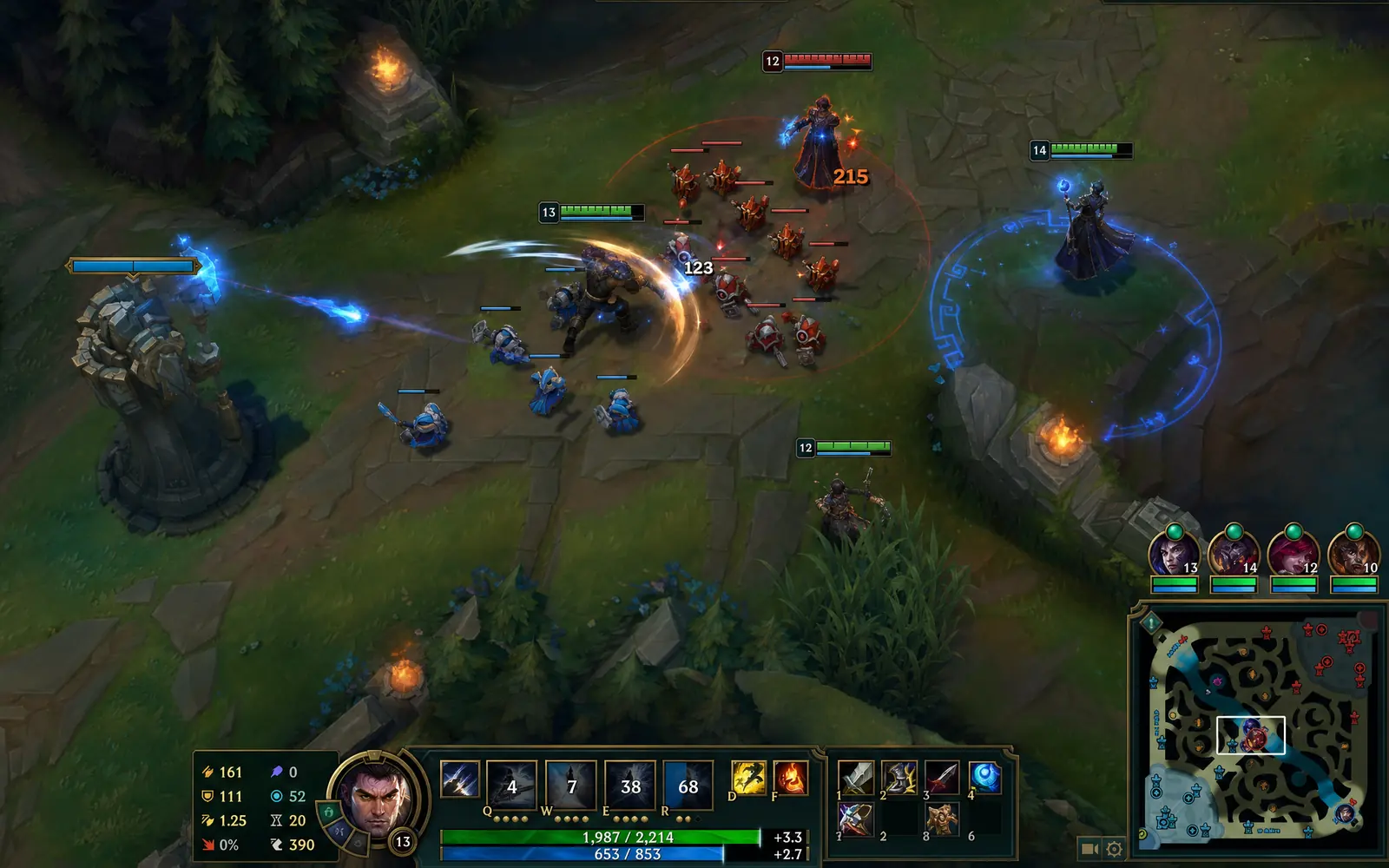
Which is why the right question about anything in that list is not "why can it see my screen" but "what does it do with what it sees, and can I verify that". And there is a question worth asking before that one: does it need to be in the list at all? Our own app is the counter-example, and it is the same problem seen from the other side. Pausr holds your break when you are in a meeting, on a call or mid-game, which sounds exactly like something that would have to watch your display. It does not, and it never asks. There is no screen recording entitlement in the bundle, so Pausr never appears in Screen & System Audio Recording and can never be the app behind this message. It works out the context the way the keep-awake apps above do: display sleep assertions when something is playing video, whether another app is holding the microphone, which app is frontmost, window geometry for fullscreen games. Local signals about the state of your Mac, never the contents of your screen. Do not take that on trust either: the list is right there, and Pausr is not in it.
Frequently asked questions
Why does my Mac say my screen is being observed?
Why does my MacBook say my screen is being observed?
Does "your screen is being observed" mean I have a virus?
Does KeepingYouAwake cause the "your screen is being observed" message?
How do I stop the message from appearing?
What is the best app to keep a Mac or MacBook awake?
Sources & further reading
- Apple Support: 'Your screen is being observed' message on Mac lock screen
- Apple Support: control access to screen recording on Mac
- TidBITS: macOS Sequoia's excessive permissions prompts will hurt security
- Macworld: macOS Sequoia requires regular permission checks
- KeepingYouAwake, open-source project page
- Amphetamine on the Mac App Store