Written by Alex Ren
Updated on 15 min read
A program for reducing screen time will not help if your screen time is your job
Quick summary A program for reducing screen time acts on exactly one of the three kinds of screen time in your day, and for most people reading this it is not the kind doing the damage. If the screen is how you earn a living, the number worth cutting is not the daily total, it is the longest stretch you go without looking away from it.
In this article
- What a program for reducing screen time can actually change
- Why most screen time apps are built for a child or a scroller
- What the research says about screen time apps, including the unflattering part
- Start with the screen time app already on your Mac
- The number no screen time app reports: your longest unbroken stretch
- How to choose an app for screen time: match the tool to the bucket
- When the answer is a person rather than a program
- Frequently asked questions
Search for a program for reducing screen time and you get two kinds of software. The first is parental control: Qustodio, Norton Family, Net Nanny, built on the assumption that the person being limited is not the person setting the limit. The second is the phone blocker: Freedom, Opal, Forest, One Sec, built on the assumption that the screen time is optional. If you are a designer, a developer, an accountant or a student, neither assumption describes you, and that mismatch is why so many people install one of these, use it for nine days, and quietly uninstall it.
What a program for reducing screen time can actually change#
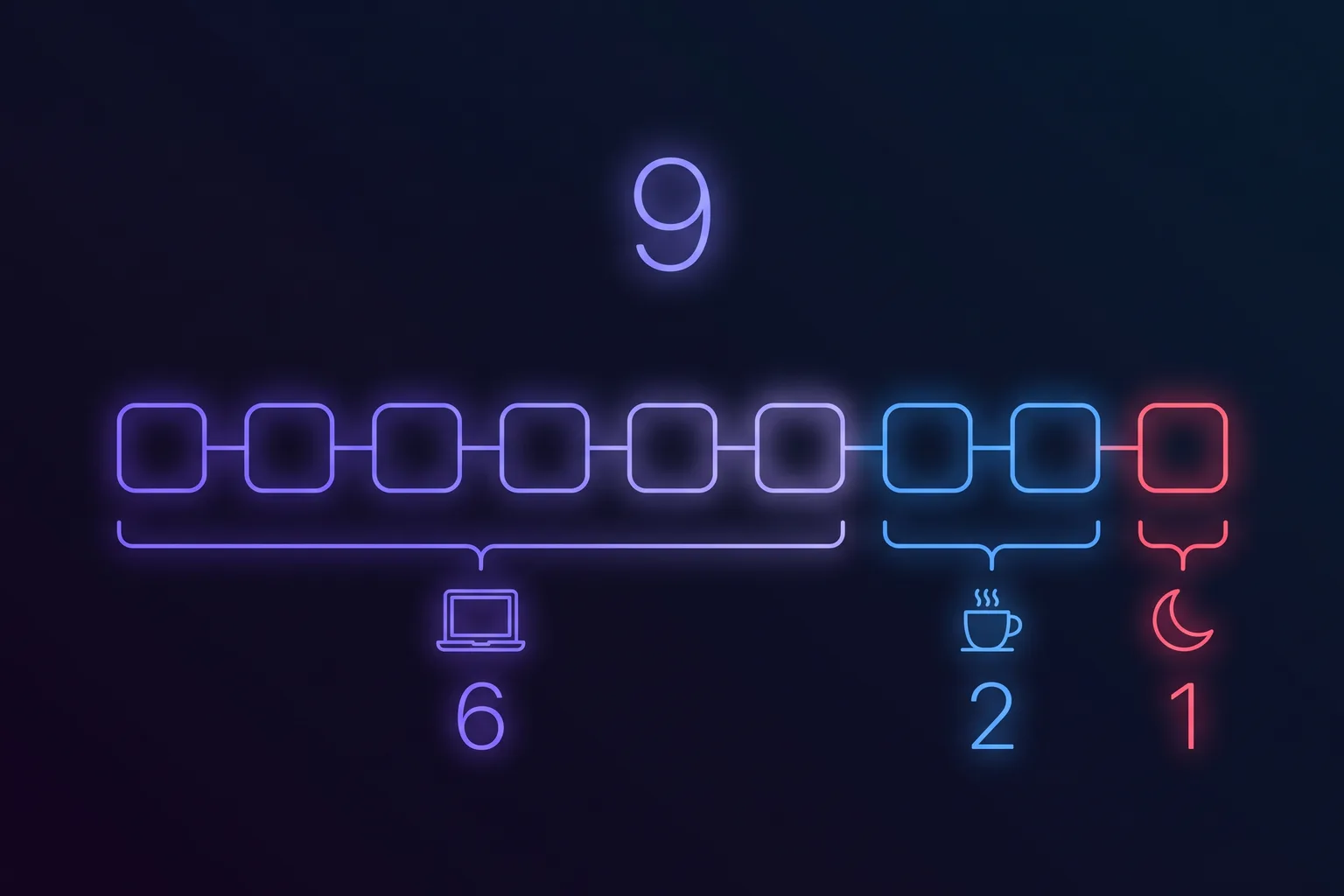
Your daily total hides three very different things, and no single piece of software touches more than one of them. Sorting your own day into these three buckets takes about ten minutes and it decides which category of tool is even relevant to you.
| The bucket | What it looks like | Can software cut it? |
|---|---|---|
| Paid work | Calls, code, documents, spreadsheets, the hours you are employed to spend | No. A blocker here just makes you late |
| Optional on-screen | Lunch over a video, the podcast watched instead of listened to, scrolling between meetings | Yes. This is the one bucket blockers and limits genuinely serve |
| Spillover | The after-dinner inbox check, the 10 pm Slack glance, Sunday planning | Partly. Downtime schedules help, willpower does not |
Most listicles pretend all three are one number, then sell you a tool that only addresses the middle row. For a knowledge worker, the middle row is usually the smallest of the three. The first row is the biggest by far, it is not going anywhere, and it is where the burning eyes and the stiff neck come from.
Why most screen time apps are built for a child or a scroller#
This is not a swipe at the products. They are decent at what they were designed for. The problem is that the query brings professionals to a shelf stocked for two other shoppers, and nothing on the page says so.
| Category | Typical products | Designed for | If your job is on the screen |
|---|---|---|---|
| Parental control | Qustodio, Net Nanny, Norton Family | An adult supervising a child's device | You end up administering limits against yourself, which is the one setup that never holds |
| Hard blocker | Freedom, Cold Turkey, AppBlock | Someone whose distraction is genuinely optional | Works on the browser tab, does nothing about the six hours in your IDE or your spreadsheet |
| Friction and mindfulness | One Sec, ScreenZen, Opal, Forest | Compulsive phone opening | Phone-first. Little to say about a Mac you sit at all day |
| Break reminder | Pausr, Time Out, Stretchly, LookAway | Someone who cannot reduce the hours | The only category built for the first bucket, because it changes the shape of the time rather than the amount |
That last row is the honest answer to this query for most people who type it at a desk, and it is also the row the affiliate roundups skip, because break apps are cheap or free and pay no commission. Our own comparison of break reminder apps covers that category in detail, competitors included.
What the research says about screen time apps, including the unflattering part#
The largest review of this software category is a systematic review and meta-analysis by Monge Roffarello and De Russis, published in ACM Transactions on Computer-Human Interaction in 2023, covering 62 studies of what the field calls digital self-control tools. Three of its conclusions deserve to be on the page of anyone selling one.
- Showing people their usage does not, on its own, change it. Tools built purely around statistics and dashboards do not reliably reduce use. Awareness is not the missing ingredient, which is awkward given how many products ship a weekly report as their headline feature.
- A block you can dismiss in one tap stops working. Lock-out mechanisms hold only when getting around them costs something. This is the mechanism behind every uninstalled blocker: the friction was set low enough to be comfortable, and comfortable friction is not friction.
- The evidence base is thin and short. Most evaluations run for days or weeks, frequently without a control group or any follow-up, which the review flags as a reason to treat the promising numbers in this field with caution. Including, to be fair, the numbers on the category we build in.
One intervention does have replicated trial evidence, and it is not an app at all: setting a phone to grayscale. Our review of the dark mode and grayscale evidence goes through the trials, which found reductions of roughly 20 to 50 minutes a day. Worth knowing because the listicles inflate that same research into “40% less screen time in your first week”, a figure the underlying studies never produced. When a page quotes an effect three times larger than the trial it cites, that tells you something about the rest of the page.
There is also a number nobody can give you: the target. Screen time guidance is almost entirely paediatric. The WHO guideline covers children under five, the American Academy of Pediatrics covers children and teenagers, and no health authority publishes a daily screen hour cap for working adults, for the simple reason that a cap is meaningless when the screen is the job. Any article confidently telling an adult to stay under two hours is extrapolating from advice written for a six-year-old.

Start with the screen time app already on your Mac#
Before paying for anything: macOS ships a screen time app, it is free, and it runs on the machine rather than on someone's server. It lives in System Settings > Screen Time, and there is one thing to know about it that explains why most people conclude it is broken.
- App & Website Activity is off by default. Until you open Screen Time and turn it on, your Mac records nothing and the panel looks empty. Worse, the rest of the features do not even appear until it is on. This is the single most common reason someone says “I checked my Screen Time and there was no data”.
- It starts from zero. Turning it on today gives you today, not last month. If you want a baseline before changing anything, switch it on and then leave it alone for a week.
- Downtime schedules a window when apps are put away, every day or a different one per day. This is the right free tool for the spillover bucket: the 10 pm inbox check has to run into something.
- App Limits caps a specific app, a whole category or a website, with a daily allowance or a different one per day of the week, and can block the app when the limit expires. The right free tool for the optional bucket.
Set those two up and you have covered, for nothing, most of what a paid blocker would have sold you. What Screen Time cannot do is anything about the first bucket. It reports how long each app was in front of you, which for a working day is a number you already knew and cannot act on. And it never reports the one figure that predicts how you will feel at 6 pm.
The number no screen time app reports: your longest unbroken stretch#
Two people can log eight hours of screen time and end the day in completely different states. One took a real lunch, stood up hourly and looked out of a window between tasks. The other sat through a four-hour block without moving. Every screen time app on the market reports those two days as identical, because they measure duration and the difference is continuity.
Continuity is where the physiology sits. At a screen your blink rate falls by roughly half and your focusing muscles hold a near target for as long as you keep looking, which is the mechanism behind computer vision syndrome as the American Optometric Association describes it. The remedy the American Academy of Ophthalmology gives is not fewer hours, it is regular distance: every 20 minutes, 20 seconds, something 20 feet away. The chair works the same way. A meta-analysis of over a million people by Patterson and colleagues found mortality risk climbing past six to eight hours of daily sitting, and the Ekelund analysis in the British Journal of Sports Medicine found 30 to 40 minutes of daily movement offsets most of it. None of those findings is about a total. All of them are about breaking a stretch.
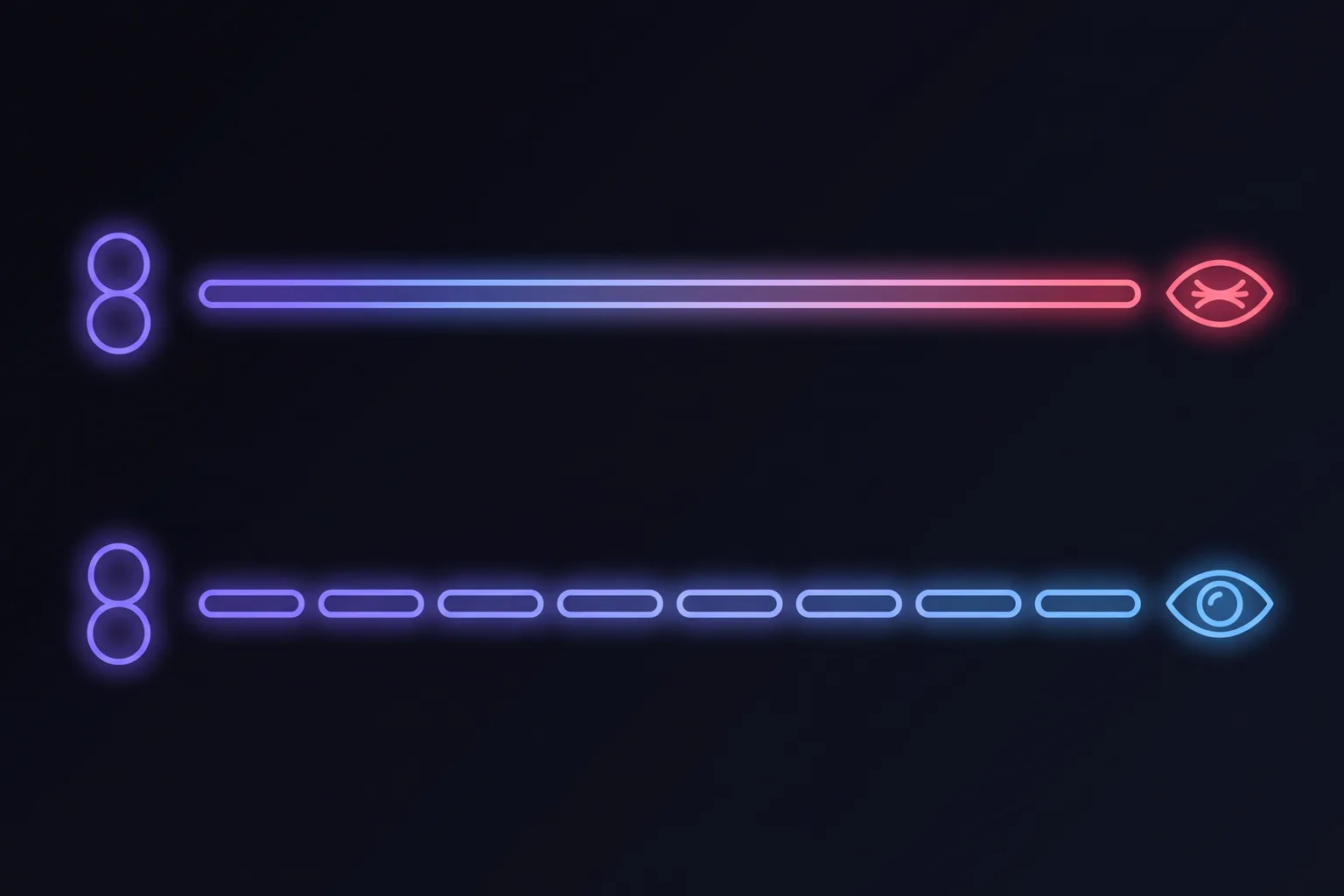
So the useful reframe, for anyone whose first bucket is the big one: stop trying to shrink the number and start measuring the longest unbroken stretch inside it. That figure is actionable this afternoon, it does not require negotiating with your employer, and it is the one your eyes and your lower back are actually responding to.
- Cursor2 h 14
- Microsoft Teams1 h 02
- Figma43 min
- Claude31 min
- Notion18 min




How to choose an app for screen time: match the tool to the bucket#
Here is the shortlist as honestly as we can put it, given that we make one of these. Find your row, then read the last column before installing anything.
| Your actual problem | The tool that fits | What it will not do |
|---|---|---|
| I lose evenings to my phone | Friction apps (One Sec, ScreenZen) or grayscale, which is free | Nothing for your working hours, and nothing for your eyes |
| I cannot stop opening one site while working | A hard blocker with real friction (Freedom, Cold Turkey) | Will not touch the apps you are paid to be in |
| I want the numbers before I change anything | macOS Screen Time, free, once App & Website Activity is on | Reports totals only. No continuity, no prompt to act |
| I need a hard stop in the evening | Screen Time Downtime, free | Enforces an edge, not the shape of the day inside it |
| My eyes burn and my neck aches by 6 pm | A screen break reminder app | Will not reduce your daily total by a single minute, and is not trying to |
| I am worried my use is compulsive | A GP or a psychologist, not an app | See the section below. This is the one row software should not be answering |
If your row is the last-but-one, that is the one we build for. Pausr is a break app for Mac rather than a blocker: it announces a break 30 seconds ahead, then steps you away for 20 seconds to rest your eyes, 90 seconds to stand, and a real long pause when it is time, and it holds automatically during meetings, screen shares and games so it never fires at the worst possible moment. It keeps local screen-time stats, on the machine, with no account and no cloud, which for a piece of software whose whole job is watching how you work seems like the minimum. What it will not do is reduce your hours. It changes what those hours do to you.
When the answer is a person rather than a program#
Most screen time problems are ordinary scheduling problems and this section is not meant to alarm anyone. It exists because two categories of thing get mistaken for “too much screen time”, and an app is the wrong response to both.
- Sudden blurred vision, eye pain, new flashes or floaters, or a change in one eye only. That points at the eye rather than at fatigue, and the AAO's guidance is an examination rather than a screen break. Vision that does not clear when you rest is not eye strain.
- Numbness or tingling in the hand that wakes you at night, or weakness gripping things. Screen hours are a plausible contributor, but this is the carpal tunnel pattern and it is assessed by a clinician, not by a timer.
- Headaches that are sudden and severe, or come with a stiff neck, fever, confusion, weakness or loss of vision. Emergency care, not an app limit.
- Use that continues despite real harm: missed sleep you cannot recover, work or relationships slipping, strong distress when you cannot get to a device, or low mood that deepens the more you use it. A blocker becomes a way of not asking for help here. A GP is the better first step.
- Screen use that has become the coping mechanism for anxiety or depression rather than the cause of it. Removing the screen without addressing what it was managing tends to go badly.
This article is general information rather than medical advice. The line worth keeping is simple: a screen habit that annoys you is a software question, and a screen habit that is costing you sleep, sight or relationships is a person question.
Frequently asked questions
What is the best program for reducing screen time?
Is there an app to restrict screen time on a Mac?
Why does my Mac show no Screen Time data?
Do app blockers actually reduce screen time?
How much screen time is too much for an adult?
What is a screen break reminder app?
Can a screen time app work without an account or the cloud?
Sources & further reading
- Monge Roffarello & De Russis, Achieving Digital Wellbeing Through Digital Self-control Tools: A Systematic Review and Meta-analysis, ACM Transactions on Computer-Human Interaction 30(4), Article 53 (2023)
- Apple Support: Get started with Screen Time on your Mac
- Apple Support: Set time limits for apps and websites in Screen Time on Mac
- Apple Support: Manage downtime in Screen Time on Mac
- American Optometric Association: Computer vision syndrome
- American Academy of Ophthalmology: Computers, Digital Devices and Eye Strain
- WHO: Guidelines on physical activity, sedentary behaviour and sleep for children under 5 years of age
- American Academy of Pediatrics: Media and Children
- Patterson et al., Sedentary behaviour and risk of all-cause, cardiovascular and cancer mortality, European Journal of Epidemiology (2018)
- Ekelund et al., Joint associations of accelerometer-measured physical activity and sedentary time with all-cause mortality, British Journal of Sports Medicine (2020)